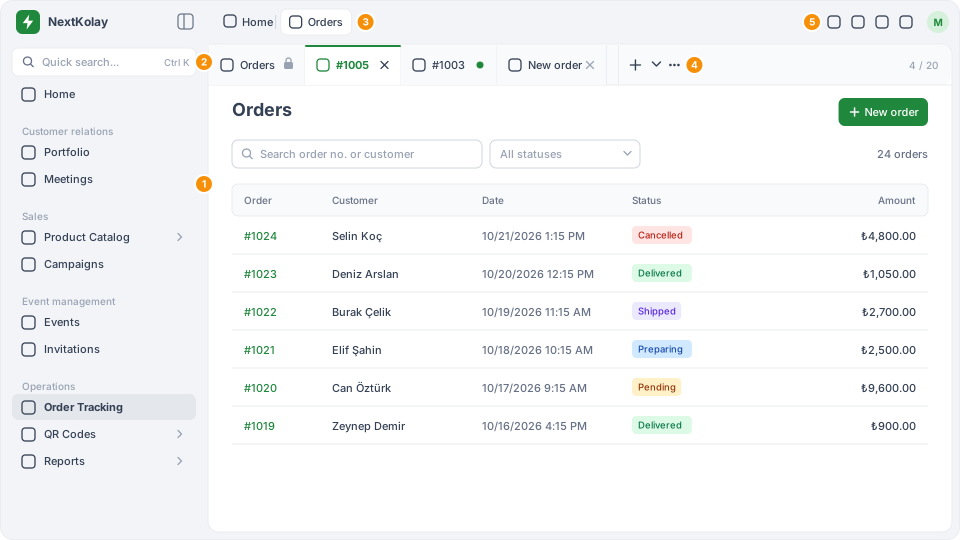
#1. Main menu
The main menu lists the sections of the app in groups: Customer relations, Sales, Event management, Operations and System. You reach orders through Order Tracking in the Operations group.
- Items with an arrow on the right (for example Product Catalog) open a submenu. Submenus start closed; they open automatically when you are on one of their pages.
- Use the button next to the logo to collapse the menu; only icons remain and hovering an icon shows its name. Click the logo to expand the menu again.
- On phones and narrow screens the menu is hidden; open it with the menu button on the left of the top bar, and close it by tapping outside or pressing Esc.
#2. Quick search
As you type in the Quick search... field above the menu, the menu is filtered. Search ignores accents: typing “urun” finds Turkish menu names such as “Ürün Kataloğu”.
- Press Ctrl K (⌘ K on Mac) anywhere to jump to the search field; if the menu is collapsed or closed, it opens first.
- Enter goes to the first result, Esc clears the search.
#3. Location
The location area in the top bar shows a Home link and the name of the current page.
#4. Tabs
Records and forms you open in a module become tabs. See Working with tabs for details.
#5. Language and theme
Use the icons on the right of the top bar to change the language and theme (Appearance and language). In the profile menu on the far right, Log out takes you to the log-in page.