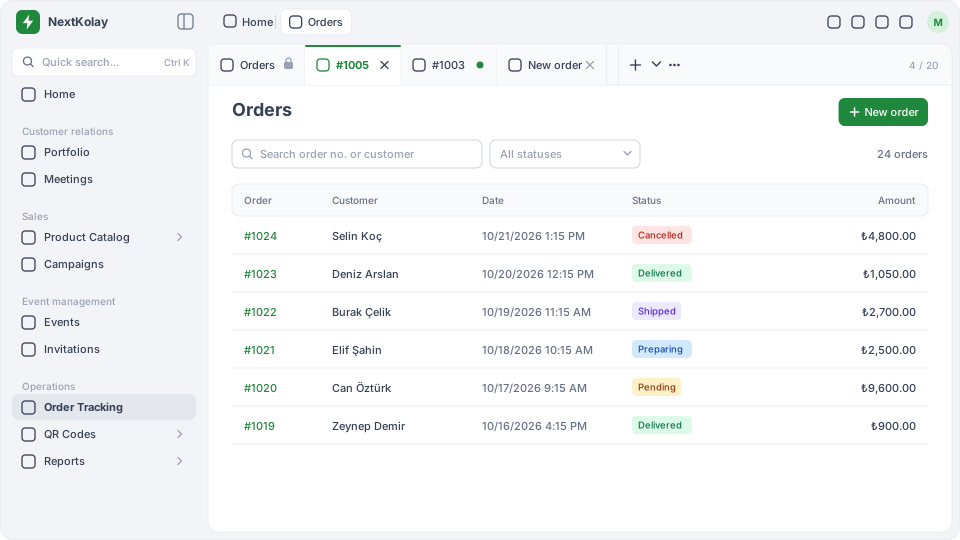
In the main menu, click Order Tracking in the Operations group. The Orders module opens with the fixed Orders tab on the far left.
#Search and filter
- As you type in Search order no. or customer, the list is filtered; you can search by order number or customer name.
- Choose a status in the All statuses selector to see only orders with that status.
- The number on the right shows how many orders match (for example “24 orders”).
#Columns
| Column | Content |
|---|---|
| Order | Order number |
| Customer | Customer’s full name |
| Date | Date and time of the order |
| Status | Coloured status label |
| Amount | Total amount of the order |
#Statuses
An order has one of these statuses: Pending, Preparing, Shipped, Delivered, Cancelled. New orders start as Pending. You change the status in the order details.
#Opening an order
Click a row in the list; the order opens in its own tab (for example #1005). If you click the same order again, no new tab opens; you switch to the existing one.
To add an order, use the New order button at the top right of the list (New order).